OAuth & LDAP Integration
Integrate with OAuth2/OIDC providers and LDAP/Active Directory.
Overview
EZ-Console supports external authentication through OAuth2/OIDC providers (Google, Azure AD, Okta, generic OpenID Connect, etc.) and LDAP/Active Directory. This allows users to sign in with their existing corporate credentials.
Configuration sources (OAuth vs LDAP)
| Integration | config.yml (or deployment config) | Admin console |
|---|---|---|
| OAuth2/OIDC | Supported — declare oauth / providers in the file. | Supported — System → Settings → OAuth2.0 Authentication (toggle, provider type, client credentials, discovery URL, scopes, redirect URI hint, auto-create user, default role, role mapping). |
| LDAP | Not used for operator LDAP connection settings. | Only here — System → Settings → LDAP Authentication. |
LDAP bind passwords, server URLs, and search bases should always be maintained through the System Settings UI (or your environment’s equivalent settings API), not checked into a static repo file.
OAuth2/OIDC Integration
Option A — Configuration file
OAuth providers can be declared in config.yml:
oauth:
  enabled: true
  providers:
    - name: "google"
      display_name: "Google"
      client_id: "your-client-id"
      client_secret: "your-client-secret"
      icon_url: "https://example.com/google-icon.png"
      auth_url: "https://accounts.google.com/o/oauth2/v2/auth"
      token_url: "https://oauth2.googleapis.com/token"
      user_info_url: "https://www.googleapis.com/oauth2/v2/userinfo"
      redirect_url: "http://localhost:5173/login?provider=google"
      role_field: "role"  # Optional: field in user info for role
      email_field: "email"  # Optional: default "email"
      username_field: "username"  # Optional: default "username"
      full_name_field: "fullName"  # Optional: default "fullName"
      avatar_field: "avatar"  # Optional: default "avatar"
      auto_create_user: true  # Optional: auto create user on first login
When both file-based providers and console-based OAuth exist, the login page can list more than one provider; treat file and console definitions as complementary unless your team standardizes on a single source.
Option B — System Settings (admin console)
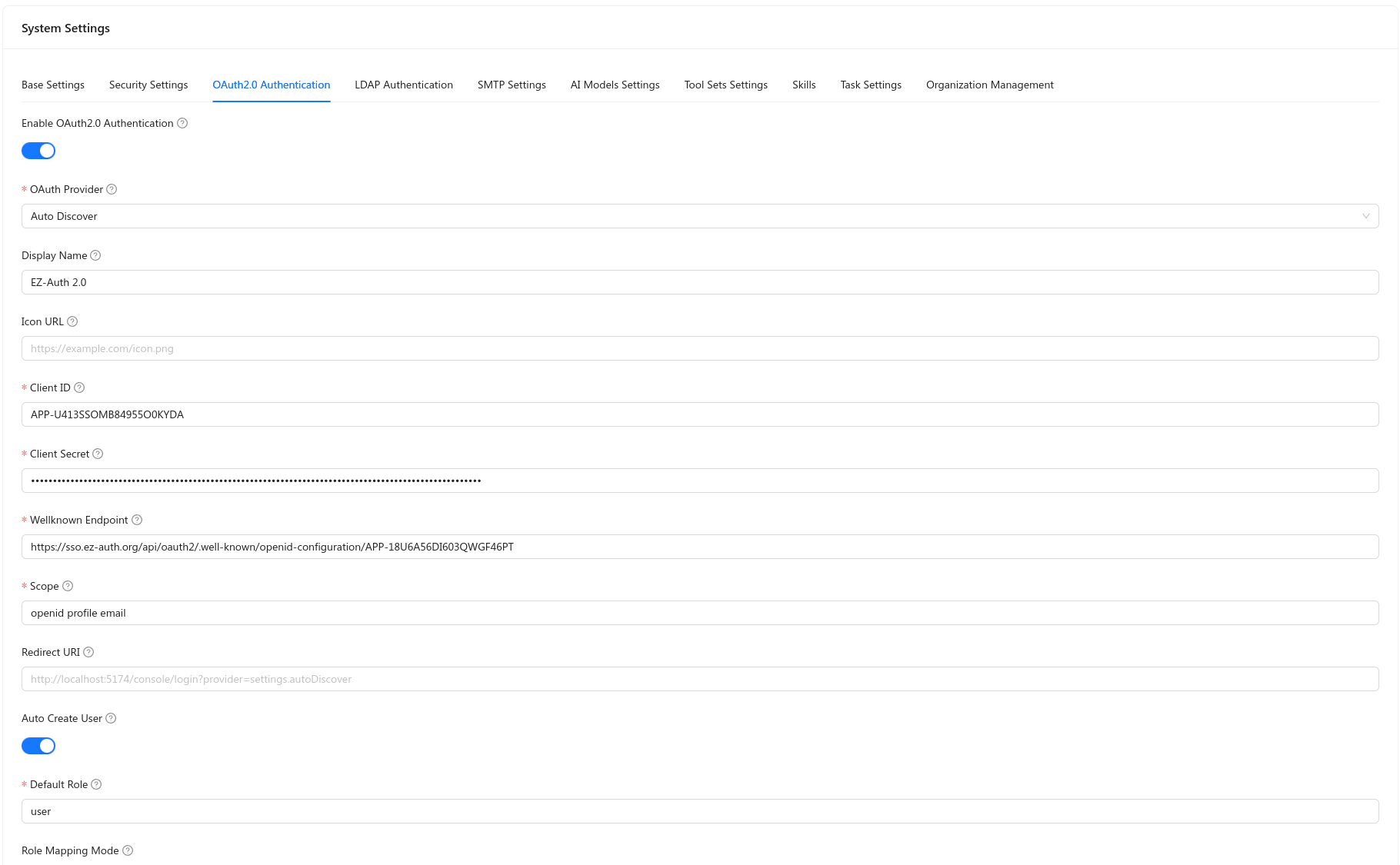
Operators can configure OAuth2/OIDC entirely from the console (useful for discovery-based OIDC, rotating secrets without redeploying, or environments where YAML is not preferred).
- Open System → Settings.
- Open the OAuth2.0 Authentication tab.
- Turn on Enable OAuth2.0 Authentication.
- Set OAuth Provider (for example Auto Discover for OpenID Connect discovery), Client ID, Client Secret, Well-known endpoint (when using discovery), Scope (commonly
openid profile email), and optional Display Name / Icon URL. - Copy the Redirect URI shown in the form into your IdP application’s allowed redirect list (it must match exactly).
- Configure Auto Create User, Default Role, and Role Mapping Mode as required by your organization.
Google OAuth Setup
-
Create OAuth Client:
- Go to Google Cloud Console
- Create a new project or select existing
- Enable Google+ API
- Create OAuth 2.0 credentials
- Add authorized redirect URI:
http://localhost:5173/login?provider=google
-
Configuration:
oauth:
  enabled: true
  providers:
    - name: "google"
      display_name: "Google"
      client_id: "YOUR_GOOGLE_CLIENT_ID"
      client_secret: "YOUR_GOOGLE_CLIENT_SECRET"
      auth_url: "https://accounts.google.com/o/oauth2/v2/auth"
      token_url: "https://oauth2.googleapis.com/token"
      user_info_url: "https://www.googleapis.com/oauth2/v2/userinfo"
      redirect_url: "http://localhost:5173/login?provider=google"
Azure AD Setup
-
Register Application:
- Go to Azure Portal
- Azure Active Directory → App registrations
- New registration
- Add redirect URI:
http://localhost:5173/login?provider=azure_ad
-
Configuration:
oauth:
  enabled: true
  providers:
    - name: "azure_ad"
      display_name: "Azure AD"
      client_id: "YOUR_AZURE_CLIENT_ID"
      client_secret: "YOUR_AZURE_CLIENT_SECRET"
      auth_url: "https://login.microsoftonline.com/{tenant}/oauth2/v2.0/authorize"
      token_url: "https://login.microsoftonline.com/{tenant}/oauth2/v2.0/token"
      user_info_url: "https://graph.microsoft.com/v1.0/me"
      redirect_url: "http://localhost:5173/login?provider=azure_ad"
Okta Setup
-
Create Application:
- Go to Okta Admin Console
- Applications → Create App Integration
- OIDC - OpenID Connect
- Add redirect URI:
http://localhost:5173/login?provider=okta
-
Configuration:
oauth:
  enabled: true
  providers:
    - name: "okta"
      display_name: "Okta"
      client_id: "YOUR_OKTA_CLIENT_ID"
      client_secret: "YOUR_OKTA_CLIENT_SECRET"
      auth_url: "https://{your-domain}.okta.com/oauth2/v1/authorize"
      token_url: "https://{your-domain}.okta.com/oauth2/v1/token"
      user_info_url: "https://{your-domain}.okta.com/oauth2/v1/userinfo"
      redirect_url: "http://localhost:5173/login?provider=okta"
Custom OAuth Provider
oauth:
  enabled: true
  providers:
    - name: "custom"
      display_name: "Custom Provider"
      client_id: "your-client-id"
      client_secret: "your-client-secret"
      auth_url: "https://provider.com/oauth/authorize"
      token_url: "https://provider.com/oauth/token"
      user_info_url: "https://provider.com/api/user"
      redirect_url: "http://localhost:5173/login?provider=custom"
LDAP/Active Directory Integration
LDAP is configured only from the admin application (System → Settings → LDAP Authentication). There is no parallel ldap: tree in config.yml for operators to edit; connection parameters are stored with other system settings.
Configure in the console
- Open System → Settings.
- Open the LDAP Authentication tab.
- Turn on Enable LDAP Authentication.
- Fill in the required fields (labels match the UI):
| Field | Purpose |
|---|---|
| LDAP Server URL | Connection URL (for example ldap://host:389 or ldaps://host:636). |
| Bind DN | Service account DN used to search the directory. |
| Bind Password | Password for the bind DN. |
| Base DN | Base DN for user entries (for example under ou=users,dc=example,dc=com). |
| User Filter | Optional LDAP filter to narrow objects (placeholder suggests patterns such as (objectClass=person)). |
| User Attribute | Attribute used as the login identifier (for example uid or sAMAccountName in AD-style directories). |
| Email Attribute | Attribute for the user’s email (often mail). |
| Display Name Attribute | Attribute for display name (often cn or displayName). |
| Default Role | Role assigned to new or mapped users when appropriate (for example user). |
| Timeout | Connection timeout (seconds). |
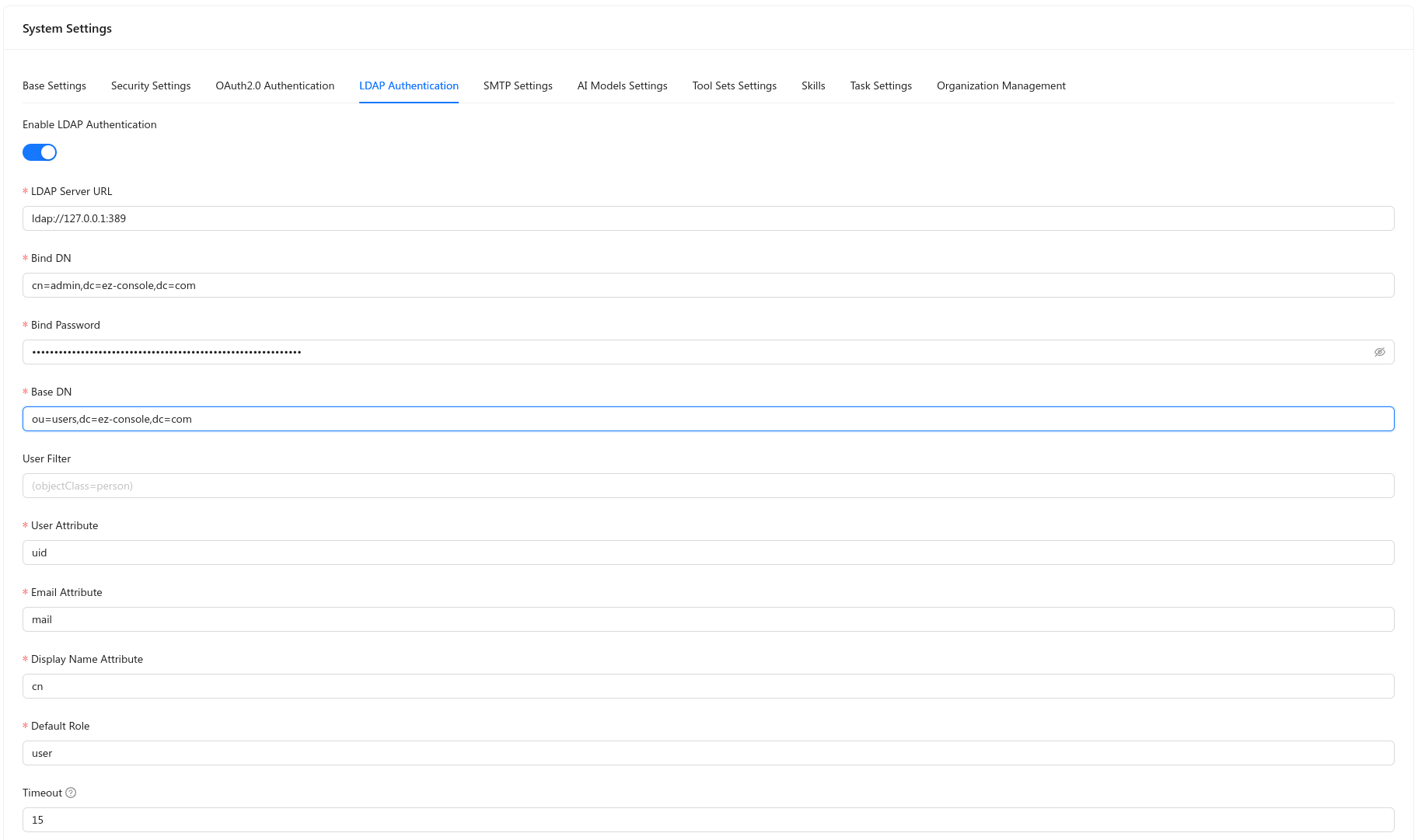
For Active Directory, use your domain controllers’ URL, a service account bind DN, and filters/attributes that match your schema (commonly sAMAccountName for login, mail, and cn or displayName).
Testing Connections
Test OAuth Connection
- Navigate to System → Settings → OAuth2.0 Authentication
- Click Test Connection for a provider
- Verify redirect works correctly
Test LDAP Connection
- Navigate to System → Settings → LDAP Authentication
- Enter LDAP configuration
- Click Test Connection
- Enter test username and password
- Verify connection and authentication
User Mapping
OAuth User Mapping
OAuth providers return user information that is mapped to EZ-Console users:
- email: User email address
- username: Username (from
username_fieldor email) - full_name: Full name
- avatar: Avatar URL
- role: Role assignment (if
role_fieldis configured)
LDAP User Mapping
LDAP attributes are mapped to user fields:
- username: From
user_search_filterresult - email: From
mailattribute - full_name: From
cnordisplayNameattribute - groups: From group search results
Auto User Creation
OAuth Auto Creation
When auto_create_user: true:
- Users are automatically created on first OAuth login
- Default role can be assigned
- User information is synced from OAuth provider
LDAP Auto Creation
- Users can be automatically created on first LDAP login
- User information is synced from LDAP
- Groups can be mapped to roles
Troubleshooting
OAuth Issues
Redirect URI Mismatch:
- Verify redirect URI matches exactly in provider settings
- Check for trailing slashes
- Ensure protocol (http/https) matches
Invalid Client Credentials:
- Verify client ID and secret are correct
- Check if credentials are expired
- Verify application is enabled in provider
LDAP Issues
Connection Failed:
- Verify host and port are correct
- Check firewall rules
- Verify TLS/SSL settings match server
Authentication Failed:
- Verify bind DN and password
- Check user search filter
- Verify user exists in LDAP
User Not Found:
- Check user search base and filter
- Verify user DN format
- Check LDAP permissions
Best Practices
1. Use HTTPS in Production
Always use HTTPS for OAuth redirects and LDAP connections in production.
2. Secure Credentials
Store OAuth client secrets and LDAP passwords securely, never in code.
3. Test Before Production
Always test OAuth and LDAP connections in staging before production.
4. Monitor Logs
Monitor authentication logs for failed attempts and connection issues.
Related Topics
- Authentication & Authorization - Auth implementation
- System Settings - System configuration
Need help? Ask in GitHub Discussions.